How We Used Screaming Frog’s AI Integration to Audit 30,000+ Pages for an Enterprise Account
 |
|

Introduction
When an enterprise client reached out to us about their web overhaul, we quickly realized the scale of the challenge: ten separate websites, tens of thousands of pages, and no clear way to tell who each site was for.
It was duplicative, inconsistent, and overwhelming, not just simply messy. Each department had its own subfolder, and faculty or staff could publish anything they wanted. The result? Public-facing pages full of internal updates, employee information, and resources that should have lived behind a login.
We needed a way to categorize 30,000+ pages, determining what belongs on a public site versus what should move to an intranet. Manually combing through every page was nearly impossible… and would have taken hours upon hours to complete. That’s where Screaming Frog’s AI integration came in.
The Challenge: Organizing Content at Scale
Our client's goal was clear:
“We need to know what content belongs on the public site and what’s meant for current employees and students.”
In other words: external vs. internal content.
But when you have tens of thousands of pages, PDFs, and random posts from a decade of decentralized publishing, identifying audience intent isn’t a checkbox task.
We needed automation with human-like reasoning. The ability to look at a page’s text and decide, “Is this for the general public, or for people inside the organization?”
Why Screaming Frog + AI?
We’ve used Screaming Frog for years to handle large-scale crawls and data extraction. But with its new AI integration, you can push that one step further, analyzing pages using LLMs (large language models) like OpenAI or Gemini.
This meant we could:
Crawl every page on the site
Extract its HTML content
Send that content to a model like ChatGPT for categorization
Store the output (category + reasoning) right into Screaming Frog’s reports
In short, we turned Screaming Frog into an AI-powered content auditor.
How to Use Screaming Frog’s AI Integration
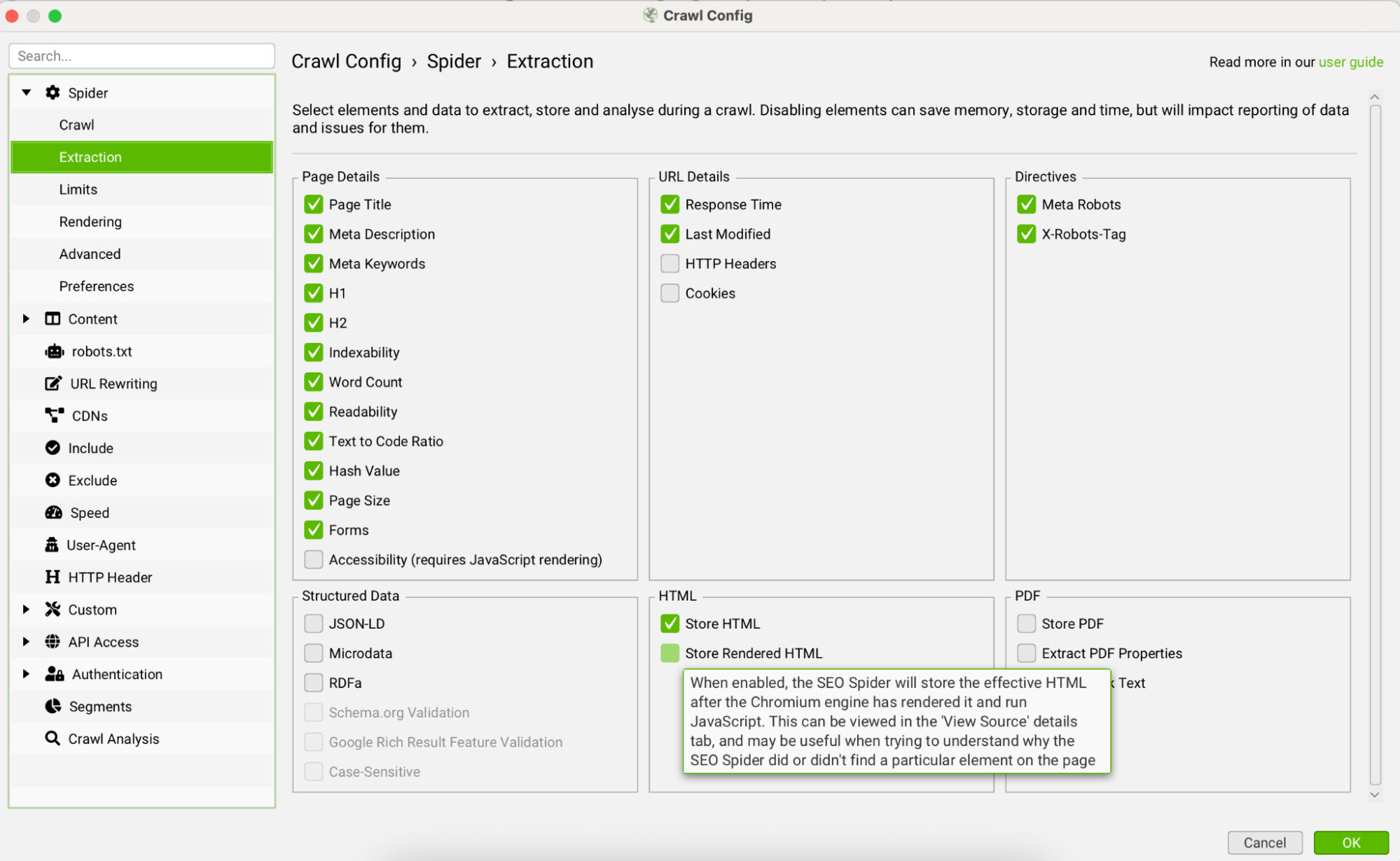
Step 1: Store HTML During Your Crawl
First, under Crawl Config → Spider → Extraction, make sure “Store HTML” is checked. This tells Screaming Frog to save each page’s full HTML content so your prompts can analyze it later. Without this step, your AI requests won’t have any content to work from.
Step 2: Connect Your AI Model
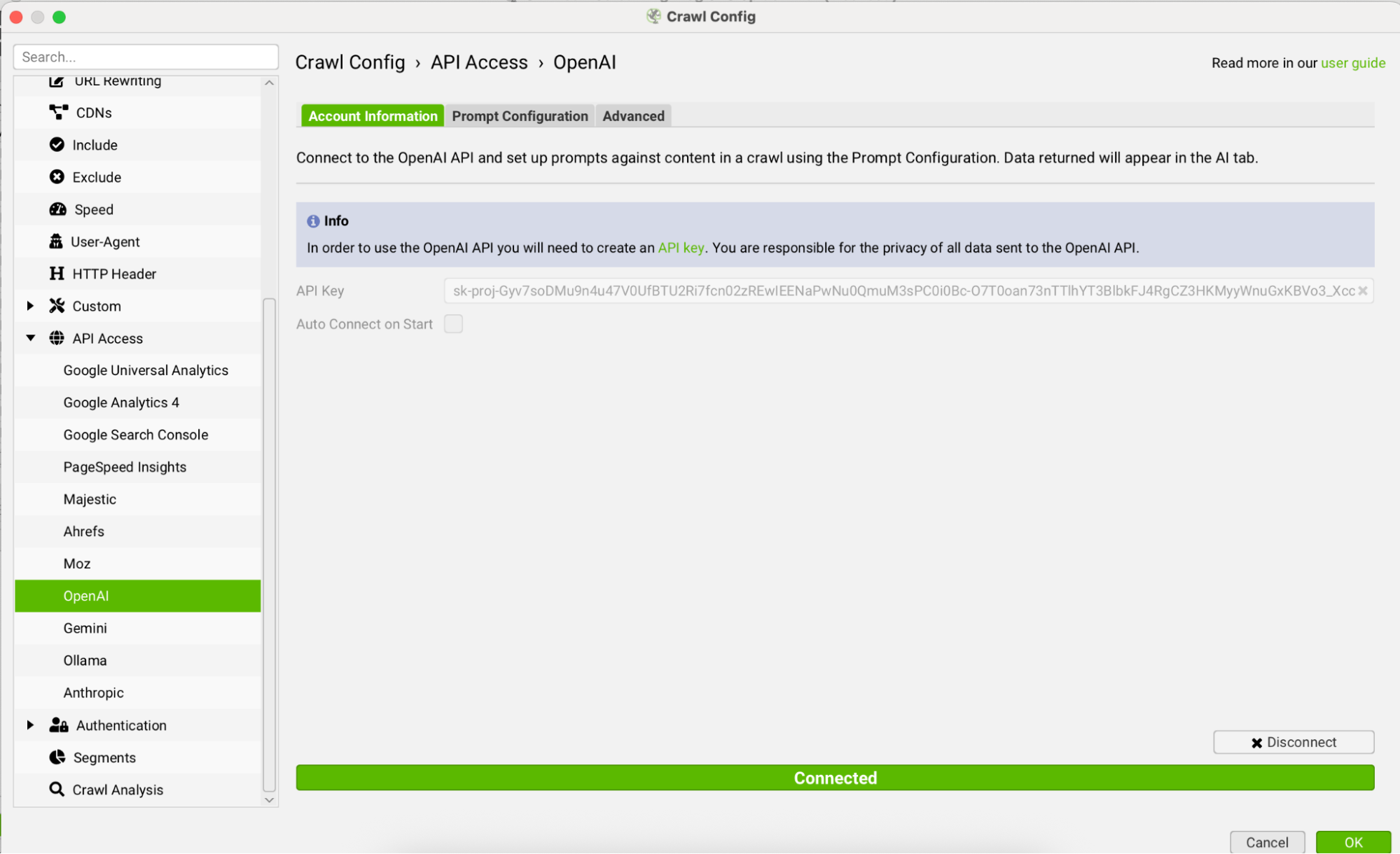
Next, go to Crawl Config → API Access and choose your preferred LLM. You can connect to OpenAI, Gemini, etc, directly.
You’ll need to enter your API key and click “Connect”.
OpenAI requires a paid API key (cost per request varies by model)
Gemini currently offers a free tier–up to 1,500 API requests/day with basic models, which is great for testing.
For our project, we used OpenAI’s newest and most cost-efficient reasoning model. The reasoning ability was key. It allowed us to see the “why” behind each classification, so we could refine the prompt over time.
Step 3: Build and Test Your Prompt
This is where the magic happens.
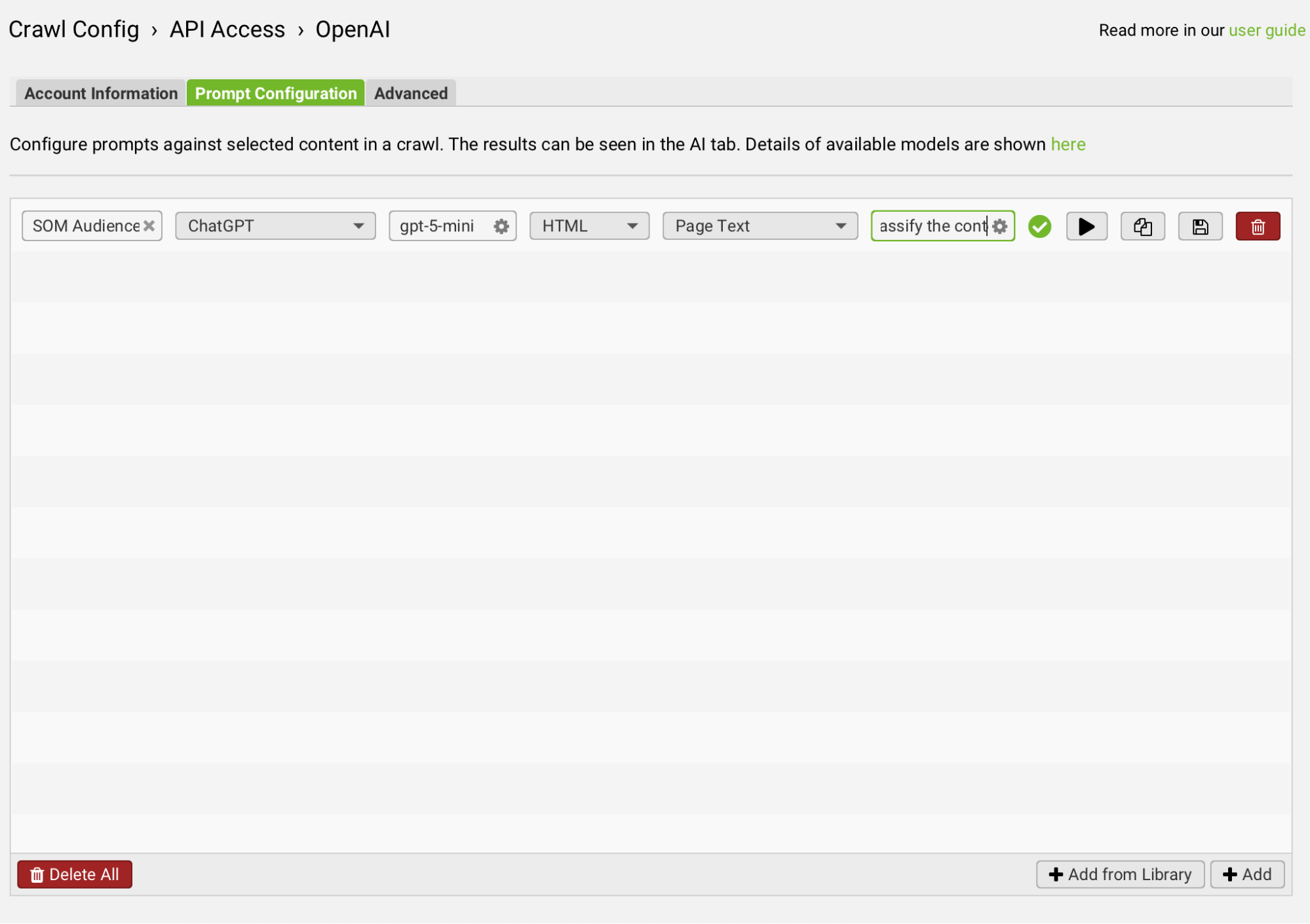
Head to the Prompt Configuration tab and click “+ Add” to create a new prompt. You can save it to your library later once it’s working perfectly.
Here’s how we set ours up:
Model category: ChatGPT
Specific model: gpt-5-mini
Content type: HTML
Prompt target: Page Text
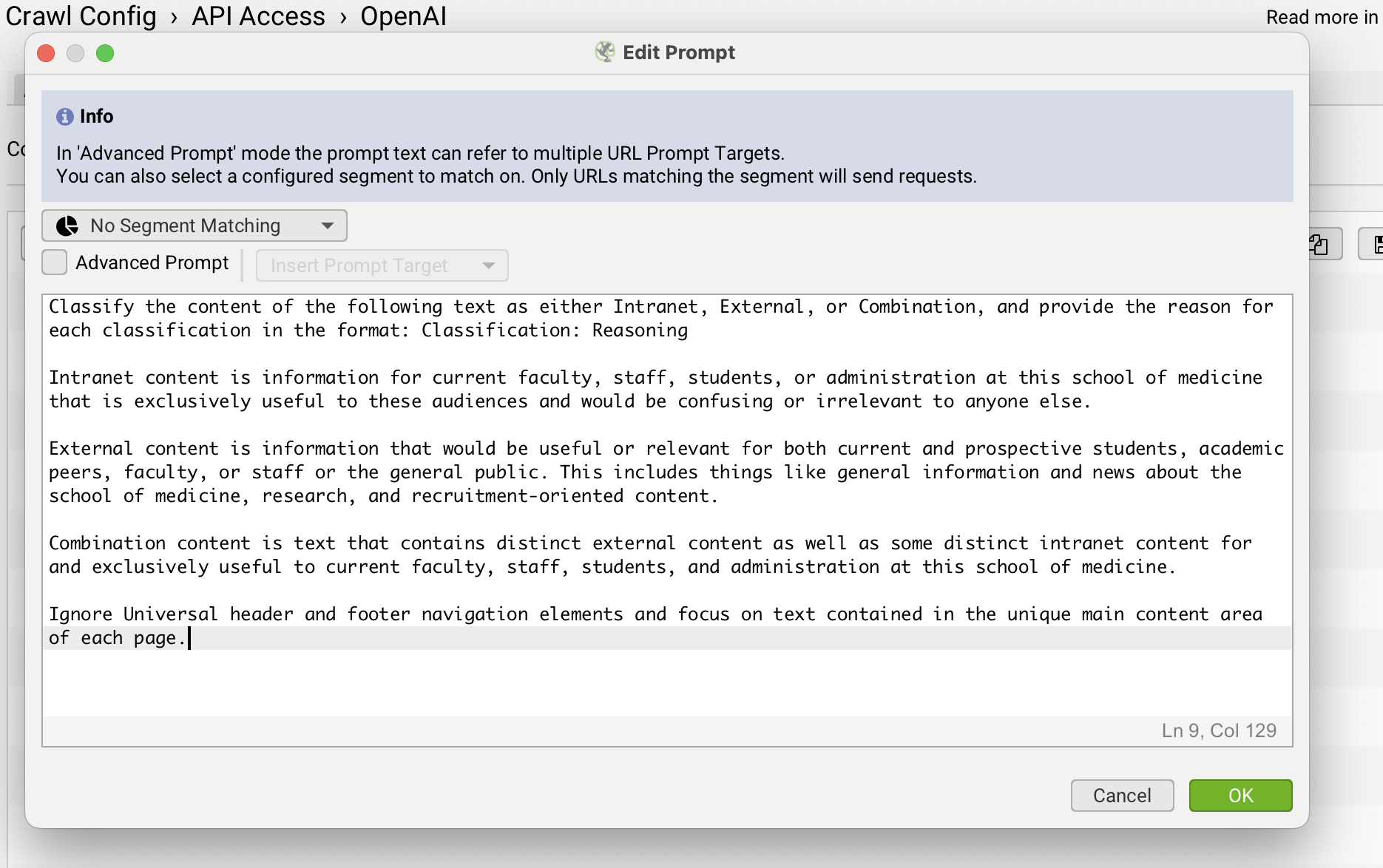
Then, we wrote our initial prompt:
“You are an expert in web strategy and audience analysis. Based on the HTML content, categorize this page as INTERNAL or EXTERNAL. Provide a short explanation for your decision.
Output in the format: Category: Reasoning.”
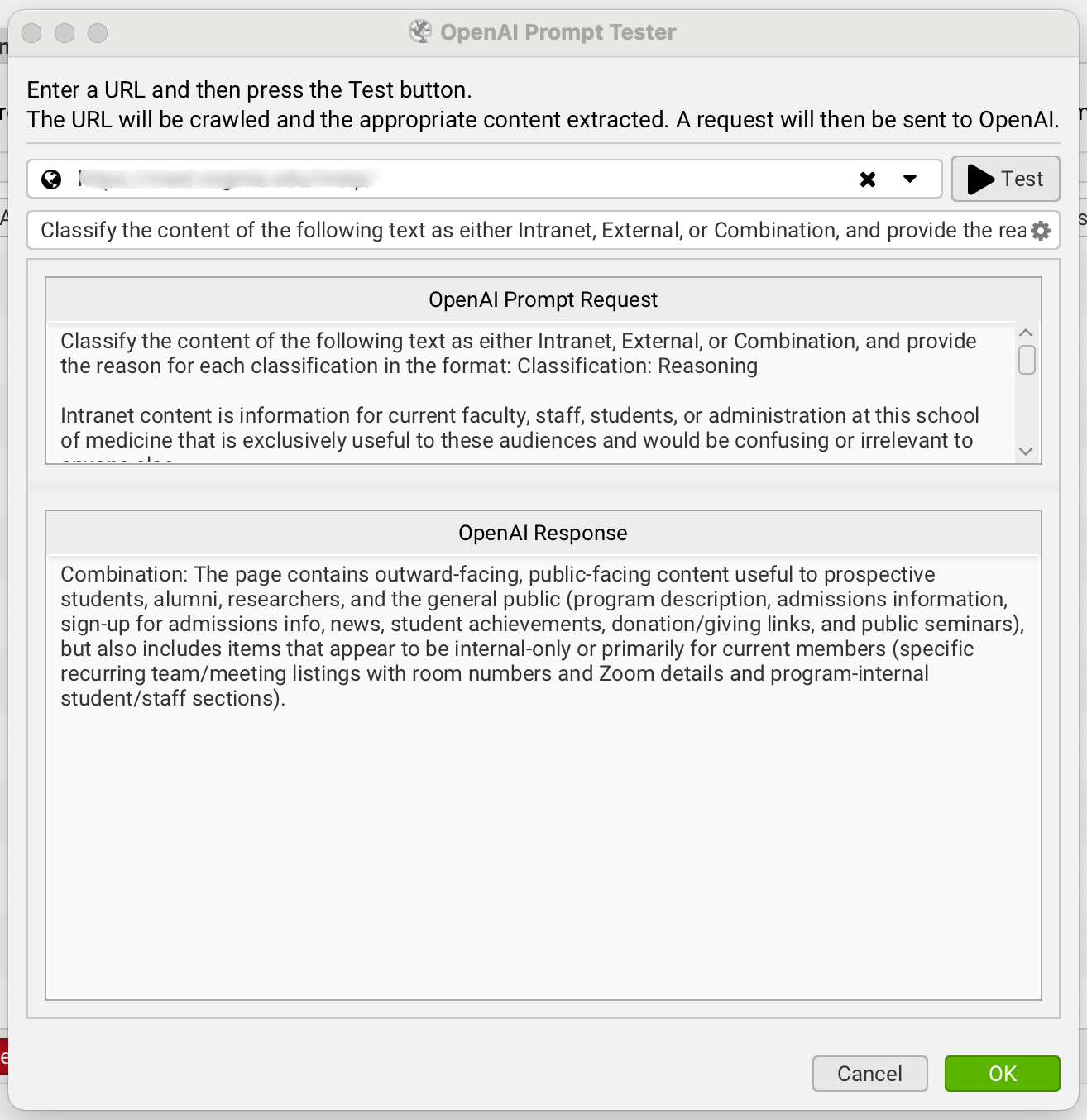
After running a few test pages, we reviewed the output. When we noticed false positives, like labeling pages as “combination content” because of universal navigation links, we refined the prompt:
“Ignore universal navigation, login buttons, or links common to all pages.”
We continued testing and refining our prompt based on the output and reasoning until we were consistently in agreement with the results.
Step 4. Run Test Batches, Refine, Repeat
We ran small test batches (10 to 20 pages at a time) until the model’s reasoning matched our internal logic.
This iterative approach let us:
Fine-tune the language of the prompt.
Validate consistency in reasoning.
Build confidence before scaling up to the full crawl.
Step 5. Run the Full Crawl
Once confident, we let Screaming Frog crawl all 30,000+ pages, sending each to the AI model for categorization.
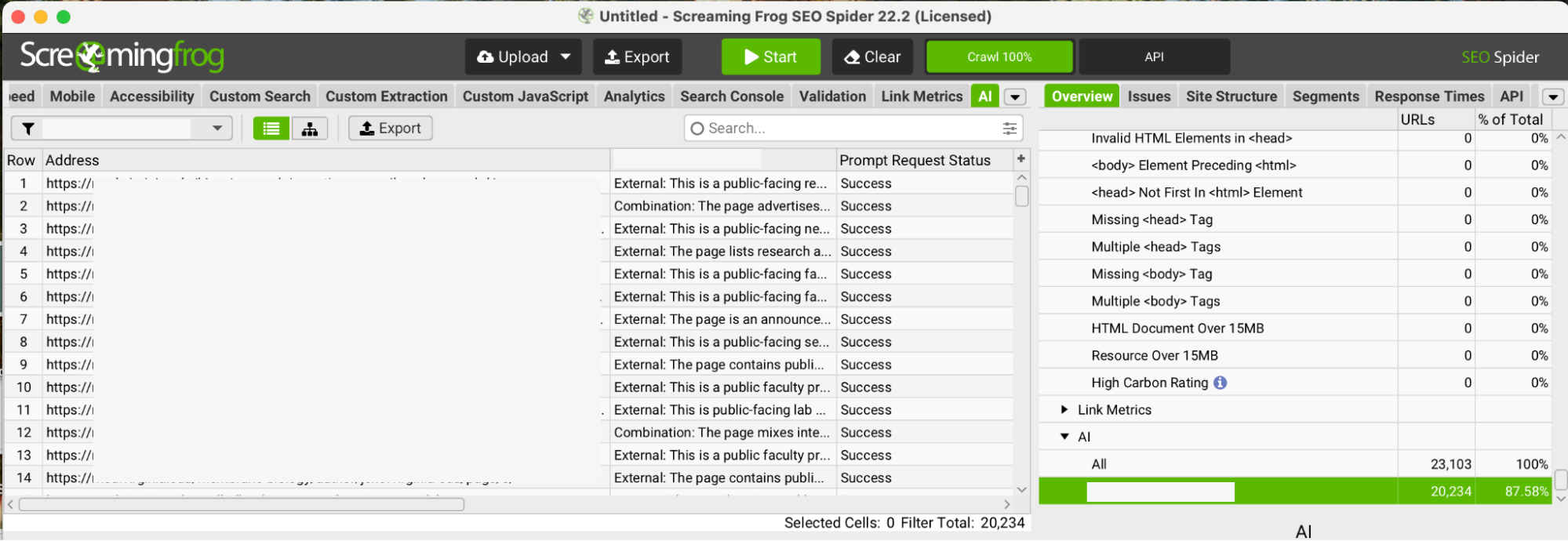
When it finished, the output appeared in new columns inside the Screaming Frog interface:
AI Category (INTERNAL/EXTERNAL/COMBINATION)
- AI Reasoning
All of this data is also stored in the “AI” report, where you can filter and export it for deeper analysis.
The Results: Turning AI Insights into Action
With the crawl and analysis complete, we were able to:
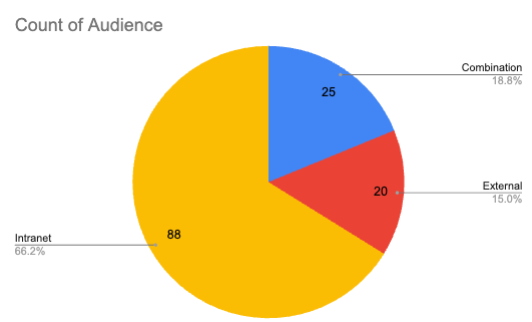
Identify what percentage of pages should move to an intranet (internal audience only).
Quantify and retain all externally facing content.
Give our client's team a clear, data-backed roadmap for content migration.
Instead of guessing which pages to keep public, they now had reasoning-based classifications for every URL, complete with explainable logic.
The outcome:
A cleaner, audience-focused public website
Streamlined content governance
Time savings measured in hundreds of hours

Final Thoughts on Screaming Frog’s AI Integration
This project proved that AI integrations aren’t just experimental; they’re practical. Screaming Frog’s built-in LLM connection turned what used to be a manual, weeks-long audit into a fast, repeatable process that actually improves over time.
If you’re staring down a massive content migration or just need to understand your site at scale, this setup is absolutely worth trying.
Need help setting up your own AI-powered content audit? Reach out to the Workshop Digital team! We’d love to help you get started.