
The New Norm: Moving Beyond Clicks and Leads
I recall the days when simply having the ability to report on the number of clicks driven to your website by a certain ad, or the number of leads generated by each marketing source, felt novel. Trackability! The great benefit of digital marketing over more traditional formats. As the advertising ecosystem has become more complex, the trackability of those surface-level metrics is no longer sufficient.
The web is inundated, now more than ever, with spammy clicks and leads. Today’s spam is sophisticated, and it’s tricking even the best Google algorithms into optimizing towards fake lead submissions, despite marketers' best efforts at targeting.
Offline conversion data is the answer to the spam problem. By reporting on offline conversion data, you can prove the effectiveness of your advertising efforts, report on actual ROI, and perhaps most importantly, optimize the advertising systems toward stronger performance.
What is Offline Conversion Data, and Why Do I Need To Report On It?
Offline conversion data refers to first-party data about what happens to leads after they enter the sales process. It is often used to report which leads ultimately become customers. It can also be used to assess lead quality by identifying which leads progress to stages such as Marketing Qualified Leads (MQLs) and Sales Qualified Leads (SQLs).
This data can be used for a variety of purposes, but it all really boils down to two main areas:
Reporting on the effectiveness of advertising campaigns
Optimizing the advertising campaigns for better performance
Lead to Sale Mapping & Setting Up Your CRM
Before uploading your offline conversion data, you must ensure that your CRM is configured to capture the data that you will need to pass back. At Workshop Digital, we guide our partners through a lead-to-sale mapping process to understand what happens after a lead is submitted. We help ensure CRMs are set up in such a way that allows visibility into:
The source and campaign that drove each lead
Which leads are high quality
Which leads ultimately become customers
This feedback loop is essential for success, and it all starts with ensuring clean data.
In general, two things need to happen for us to be able to implement offline conversion tracking:
- You must be capturing the source data in your CRM.
This often means creating a custom mapping for source, medium, and Google Click Identifier (GCLID) information.
- You must be consistently updating lead status fields
Ideally, with qualification and conversion signals, as well as customer values.
If you are already capturing that information, you’re ready to find a way to integrate your offline conversion data within your advertising platform.
How to Report on Offline Conversions in Google Ads
There are two basic methods to report on offline conversion data in Google Ads Data Manager:
Manual Uploads of Offline Conversion Data
Automated Uploads of Offline Conversion Data
Each of the two methods shares the same first steps:
Step 1: Decide what data to upload
You may choose to upload marketing-qualified leads, sales-qualified leads, and/or converted customers. The more data the system has, the better.
Tip: If you are uploading quality signals, consider applying conversion values based on the order value and anticipated close rate at that stage (order value * close rate = value of the lead). These methods will allow you to use value-based bidding methods.
Step 2: Set Up Your Conversion Action for Offline Imports
This step is essential. Google can only accept offline uploads tied to an existing conversion action. Before uploading anything:
Navigate to Goals → Conversions
Click + Create Conversion Action
Select Conversions offline
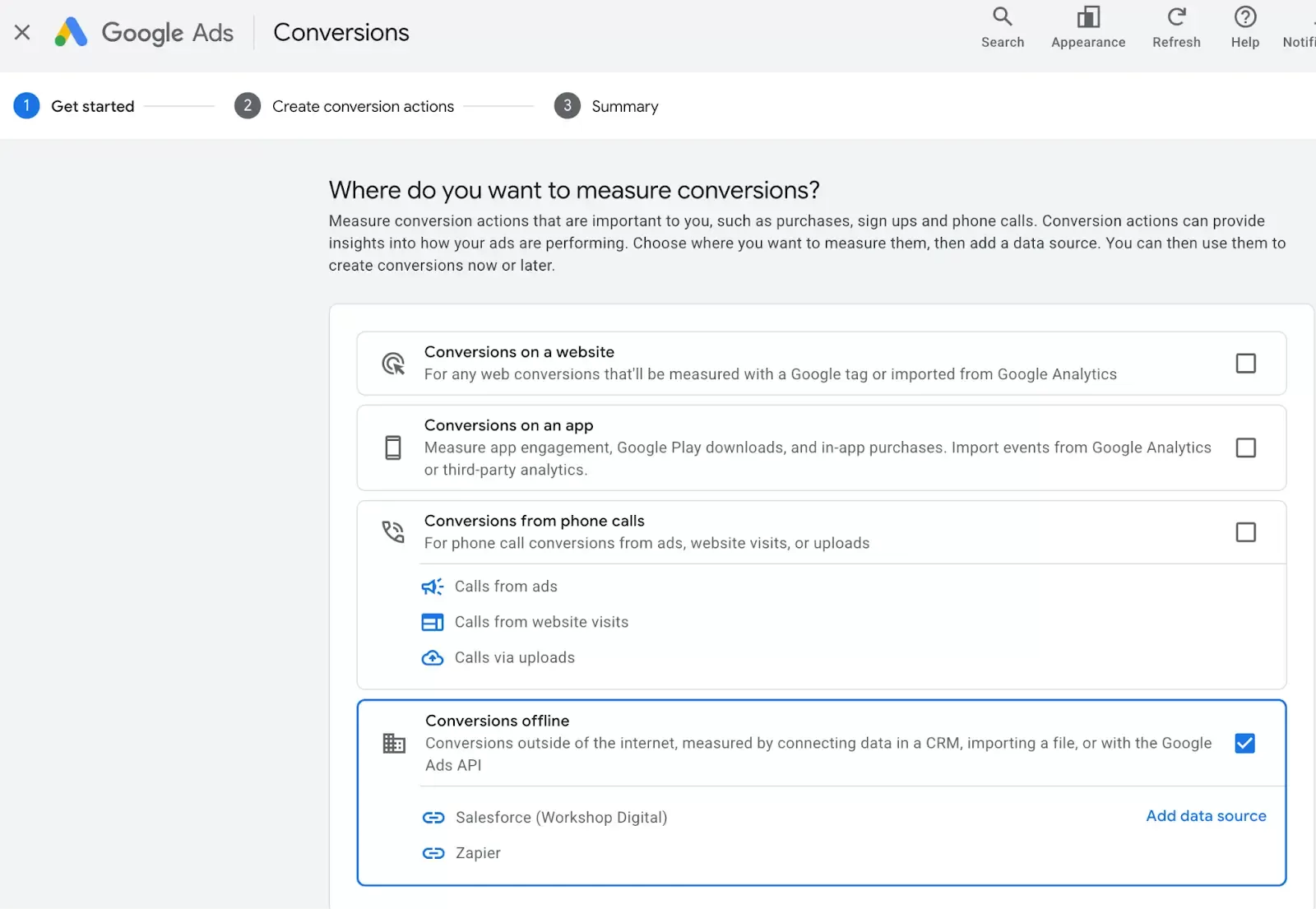
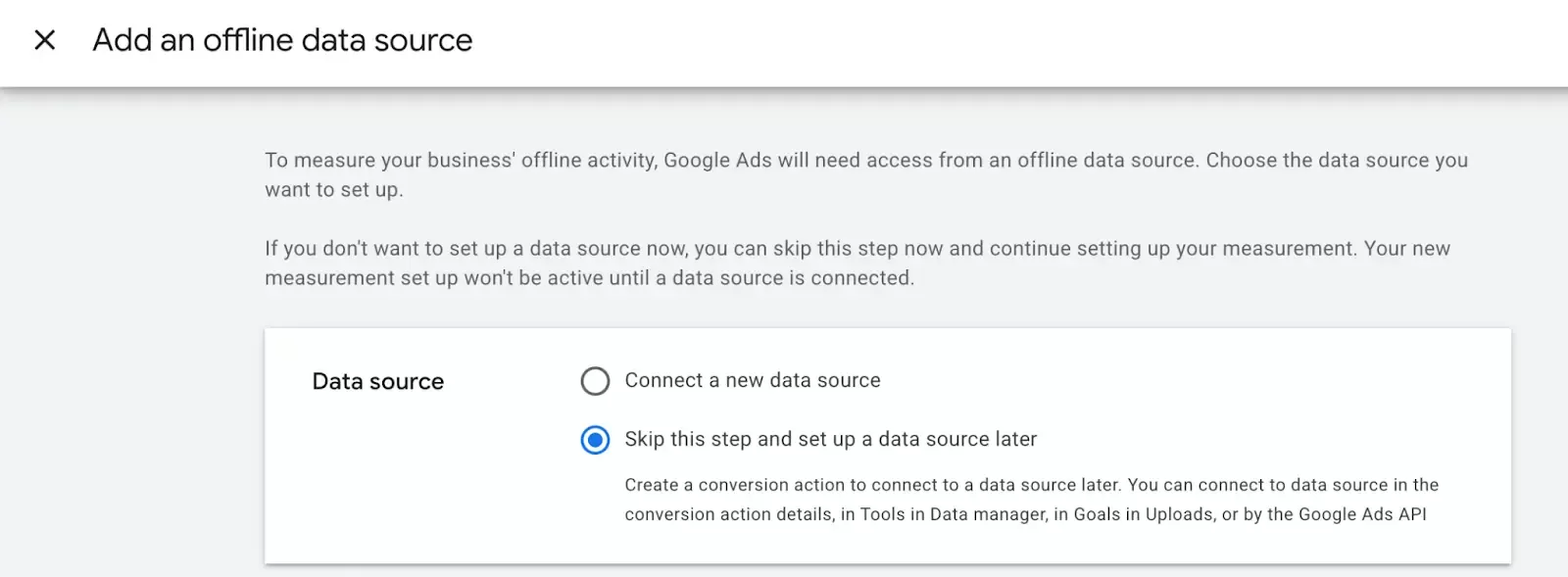
- Click Add Data Source
Tip: For simplicity, select “Connect data source later”. This will allow you to create your conversion event, and then populate it using either the manual upload or automated integration methods outlined below.
Select the appropriate category you want to measure (ie, Qualified Lead, Converted Lead)
Click + Add Conversion Actions and select “Connect Data Source Later.”
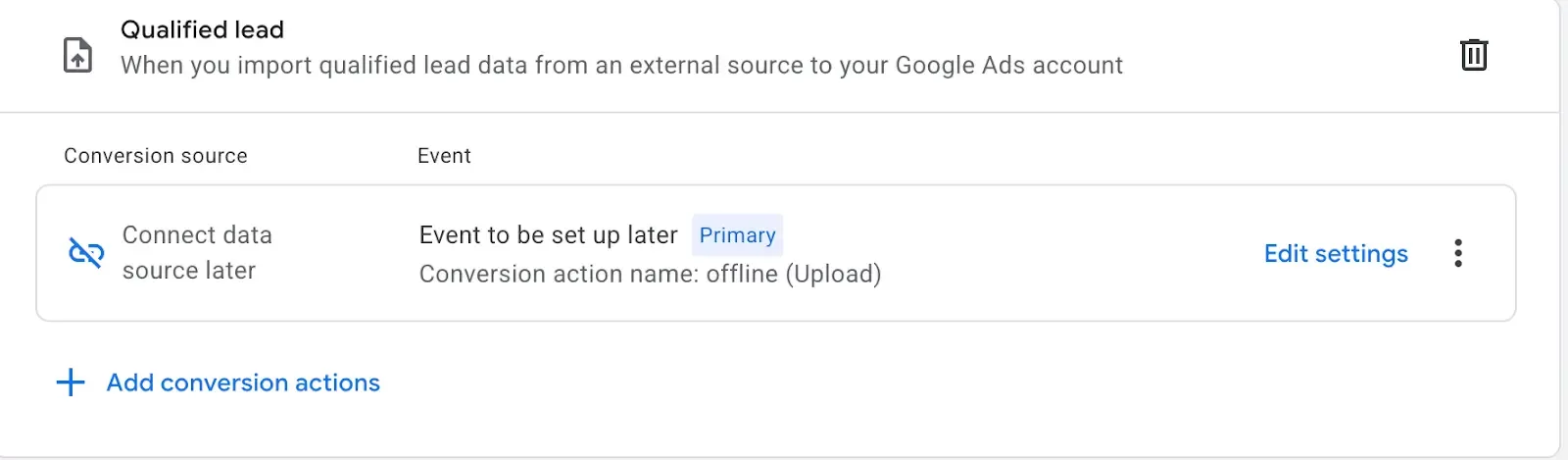
- Save and Continue
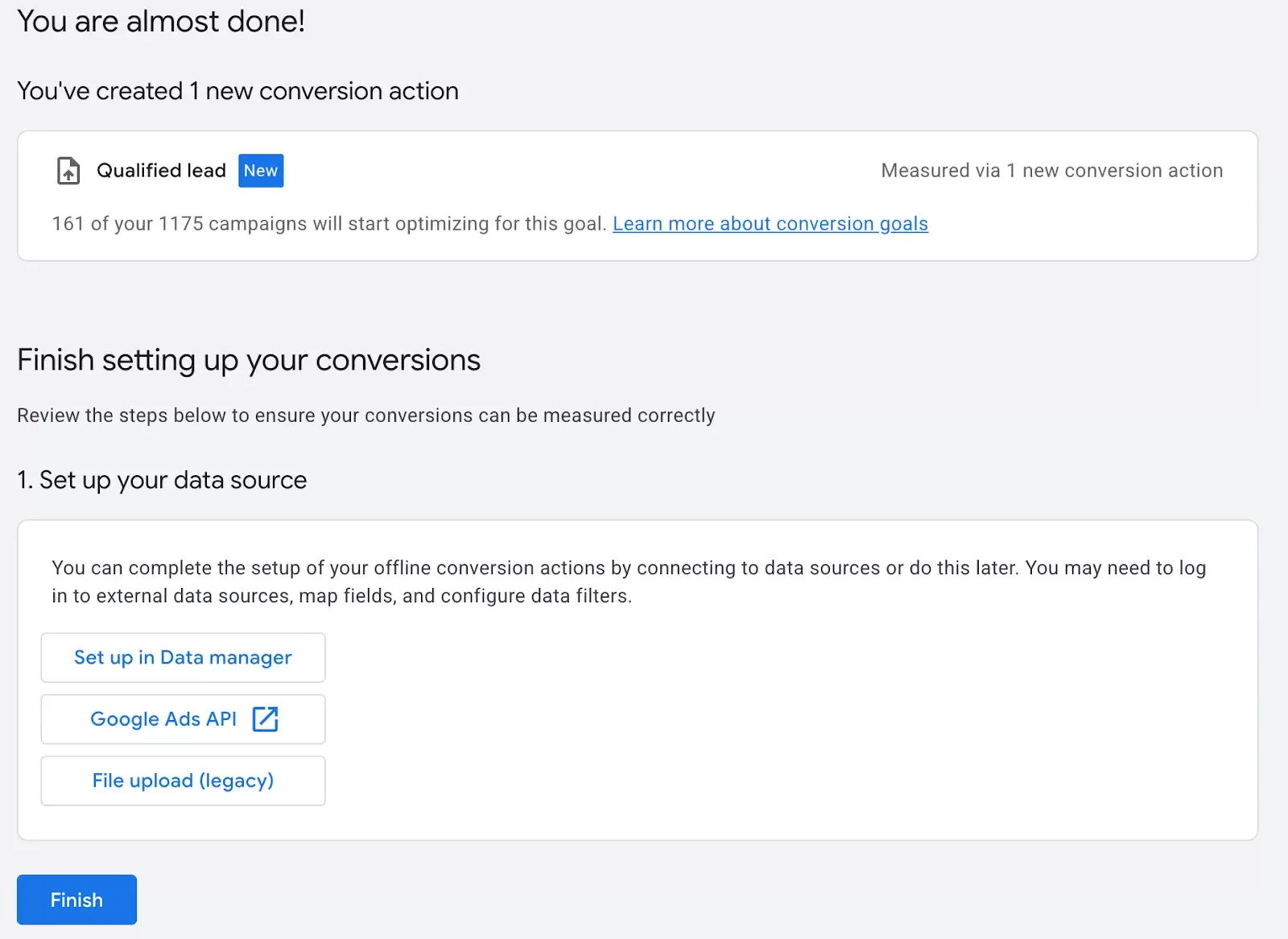
Congratulations! You have now created your conversion action! You will see options to “Set up your data sources”. The rest of this guide will walk you through the Manual (ie, “File upload (legacy)”) and Automated (ie, “Set up in Data Manager”) data integration methods to populate your new goal.
How to Manually Upload Offline Conversion Data in Google Ads
While the least sophisticated of the two methods, a good old-fashioned manual data upload still gets the job done! After completing steps one & two above, work through the following steps:
Step 3: Prepare Your Offline Conversion File
- Google accepts CSV or Excel (XLSX). Your file must follow Google’s column headers exactly.
Tip: You can download the template in step 4 below
Your upload file must include:
Conversion Name: must match a conversion action already set up in Google Ads.
Conversion Day and Time: the time the offline action happened. If you don’t know the exact time, the day will work.
Optional but recommended fields: Value, Currency, Order ID, and custom variables if used.
Step 4: Upload Your File to Google Ads
Go to Goals → Conversions → Uploads
- Click + to upload
Tip: This is where you can download your template.
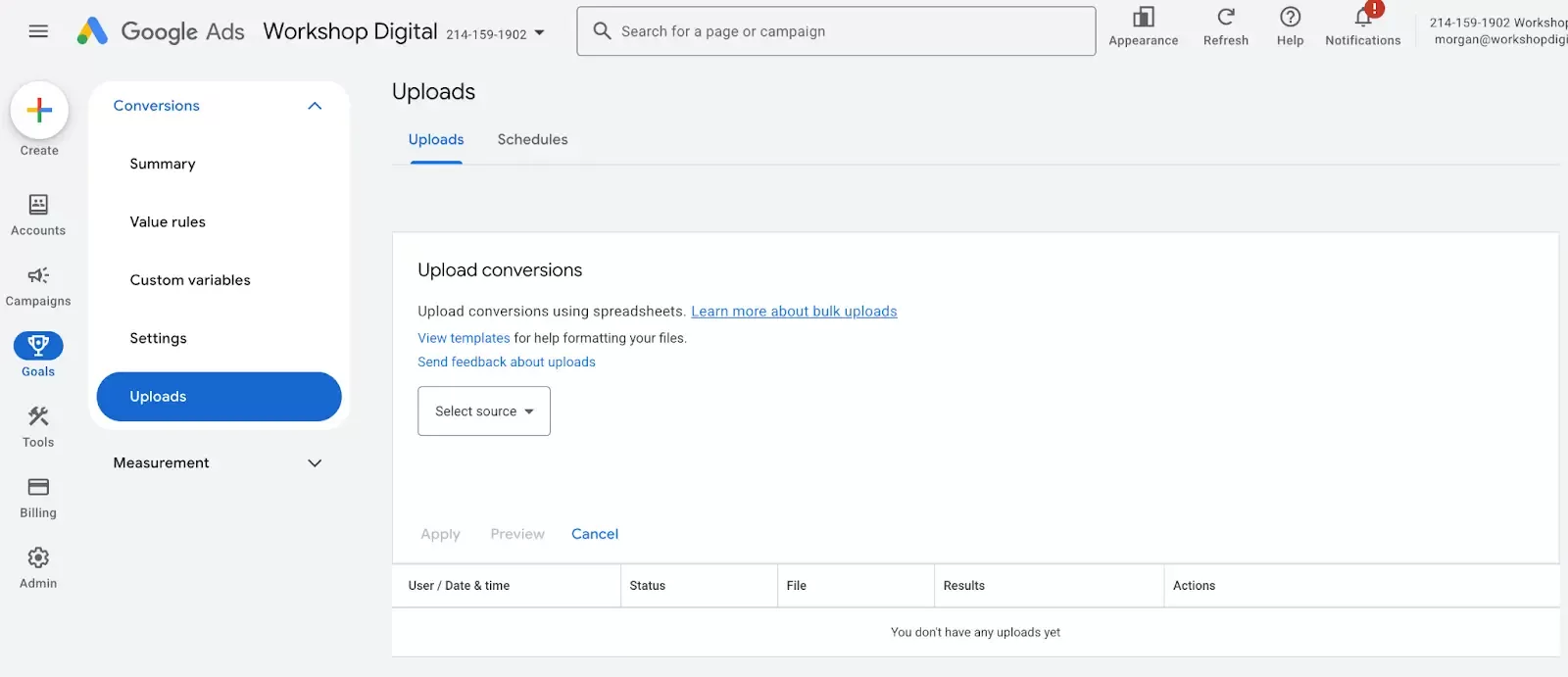
- Select your file source: CSV, Excel, or Google Sheets
Google Sheet methods can be automated. See Automate Using Google Sheets + Scheduled Uploads for more details on using this method.
Upload the file or paste the Sheets URL
- Click Preview
Tip: Don’t skip this step. The preview step allows Google to validate your file before anything is committed.
Step 5. Review Validation Results
Google will flag:
Invalid GCLIDs
Incorrect formatting
Missing required columns
Conversion actions that don’t match names in your account
Fix any errors in your file and re-upload if necessary.
Step 6. Apply the Upload
Once the preview shows no critical errors:
Click Apply
Your offline conversions will begin populating in the Conversions and All Conversions columns within 2–24 hours.
How to Automate Uploads of Offline Conversion Data in Google Ads
Automating your offline conversion uploads is a best practice, as it ensures Google Ads receives a continuous stream of signals on lead quality and value. It also saves you the time you otherwise would spend uploading files every week. This is the key to scaling performance reliably.
There are four primary ways to automate offline conversion imports:
Option 1: Automate Using Google Sheets + Scheduled Uploads
If you already store offline conversion data in a spreadsheet, simply prepare your sheet for upload using the guidance in steps one & two above, and then connect the sheet to Google Ads via Goals → Conversions → Uploads → Schedules.
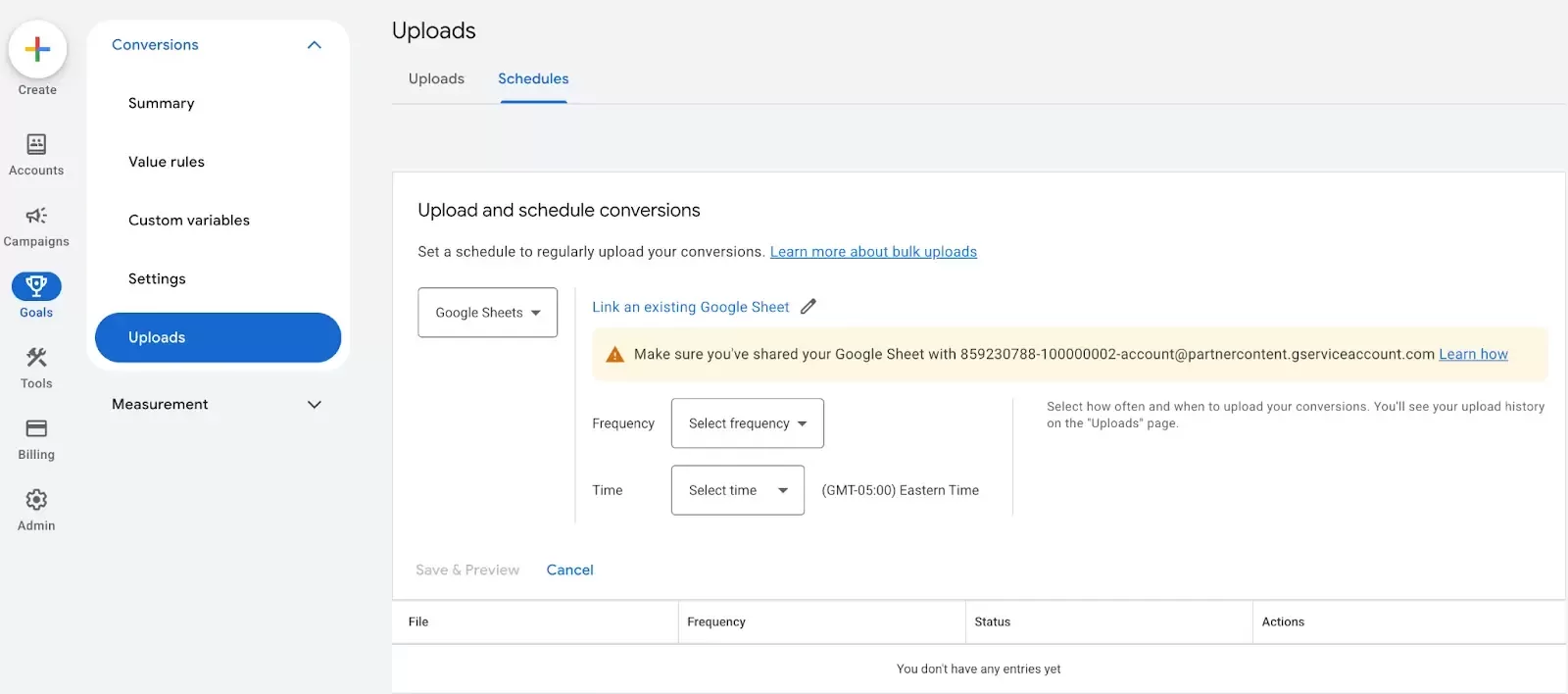
Google Ads will automatically pull the file on the schedule you set (daily or hourly)
Best for:
Teams that centralize data in Sheets and want easy automation without integration.
Option 2: Use Native CRM Integrations (HubSpot, Salesforce, Zoho, etc.)
- Some CRMs, like HubSpot and Salesforce, offer direct integrations to push lifecycle stage changes into Google Ads.
- Navigate to Goals → Conversions → Summary → View all conversion actions and find the conversion action you created in Step 2 above.
- Adjust your Settings
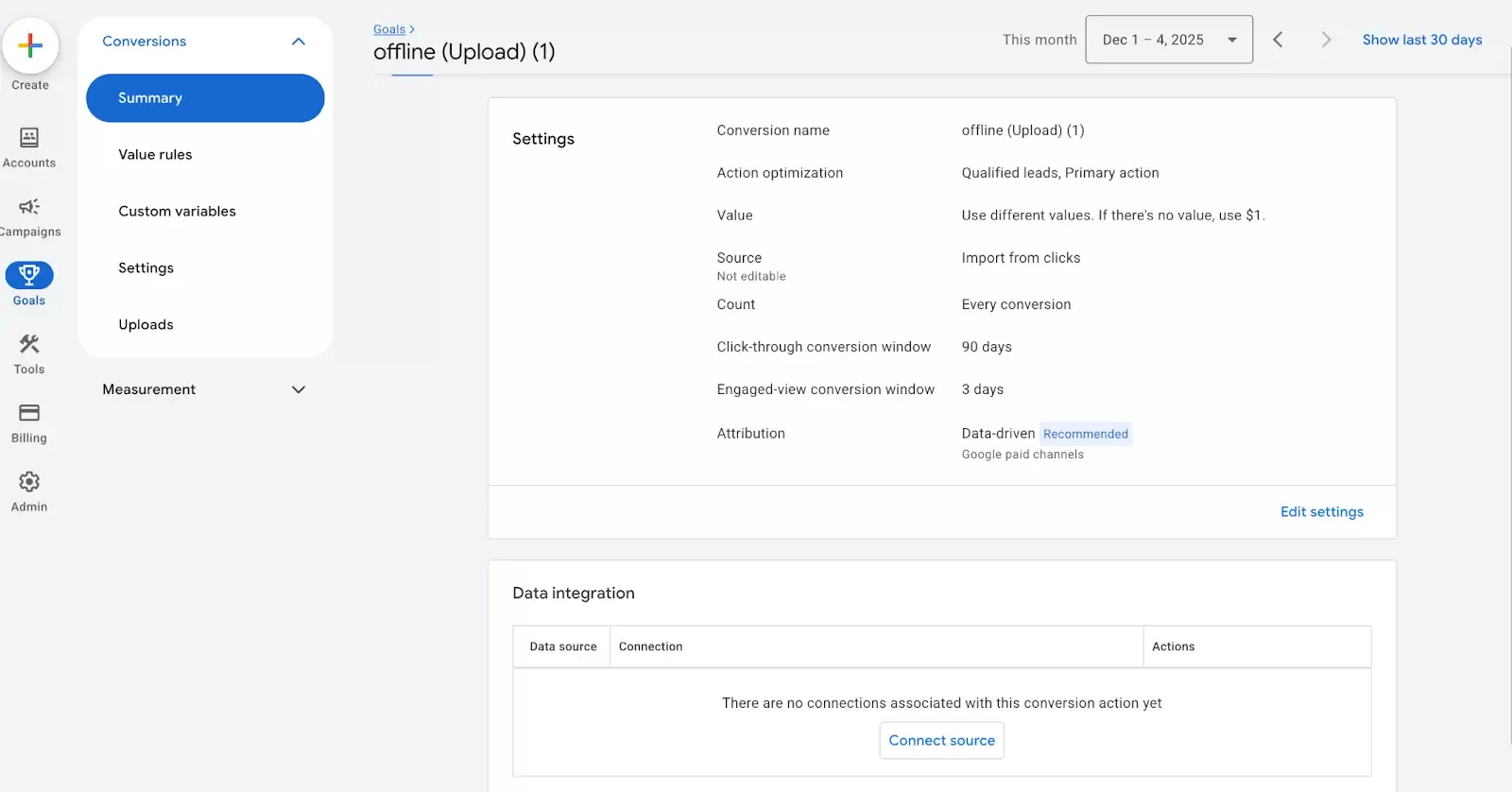
- Click Connect source and search for your CRM
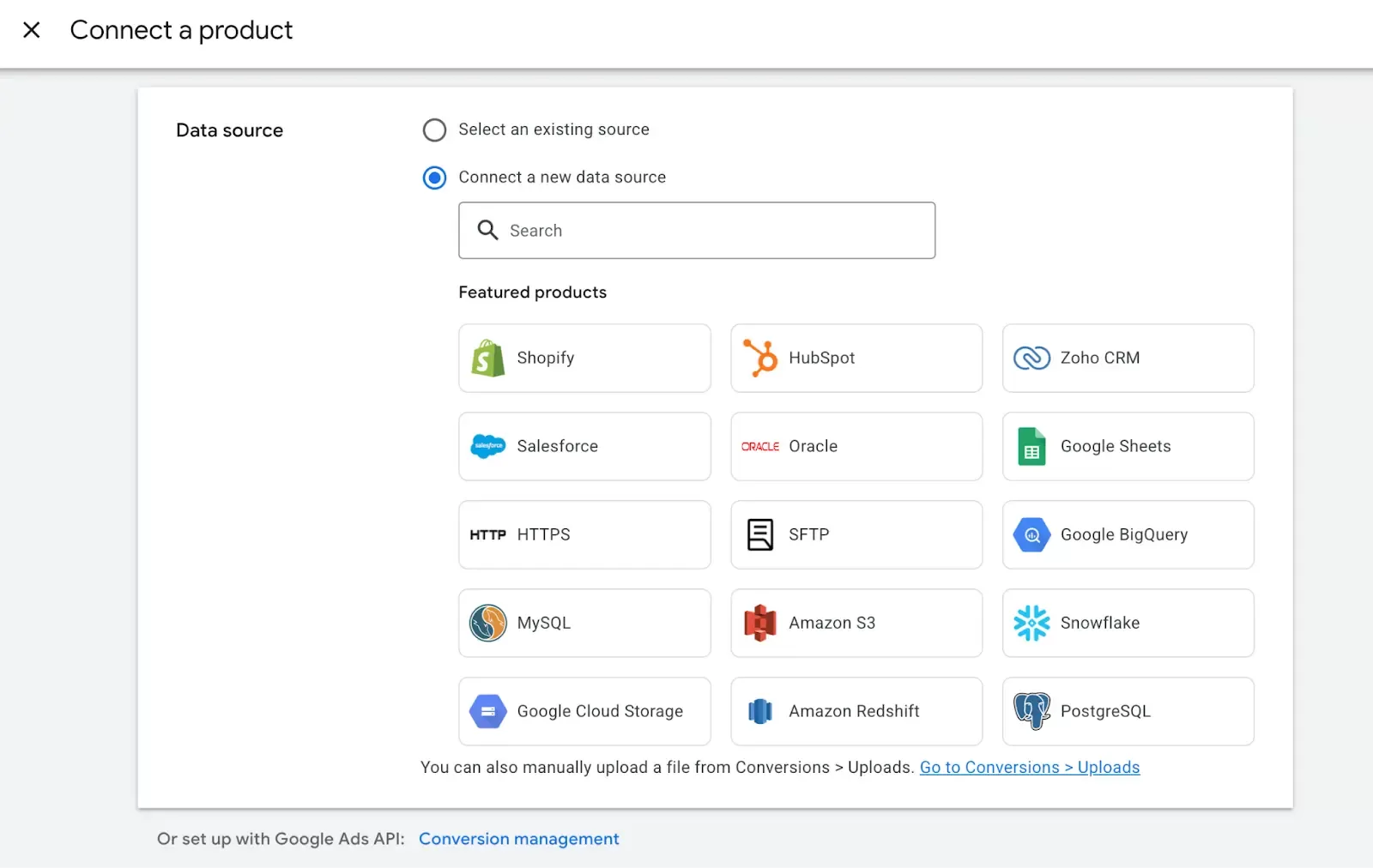
Google Ads will walk you through the integration process. Just make sure you’ve already worked through steps one & two above, so that you understand what data you need to capture as conversion actions.
Pros:
Minimal configuration
Handles mapping behind the scenes
Reduces data errors
Cons:
Limited customization
May not support all conversion types
Not all CRMs offer direct integrations
Best for:
Teams already using a major CRM that supports automated Google Ads conversion imports.
Option 3: Automate Using a Tool Like Zapier (No Code Required)
This is the easiest option when you can’t use a direct Google-to-CRM integration. Tools like Zapier are designed to pull information from one API (like your CRM) and send it to another (like your Google Ads platform).
How it works:
Zapier listens for lifecycle changes in your CRM: ex, “Lead becomes Qualified,” “Deal marked Closed-Won”.
When the event occurs, Zapier sends the required fields (GCLID, conversion name, timestamp, value) directly to Google Ads as a conversion event.
Requirements:
- GCLID or gbraid/wbraid captured in your CRM
A corresponding conversion action has already been created in Google Ads
Best for:
Non-technical teams who can’t leverage native CRM integrations and want a reliable, fast, simple setup.
Option 4: Build a Custom Integration Using The Google Ads API
If none of these options work for your team, consider a fourth and final route: building a custom integration using the Google Ads API. This is the most flexible and most powerful method, but it requires heavy developer resources.
How it works:
Your system stores GCLIDs from form submissions or call tracking
Whenever a lead progresses (ex, qualified, demo completed, sale), your backend triggers an API call to Google Ads to send the offline conversion
Requirements:
Developer resources
Google Ads API access
Secure systems to store and match GCLIDs or enhanced conversion identifiers
Advantages:
Fully automated
Real-time or near real-time uploads
Supports advanced attribution, custom parameters, and multi-step conversion logic
Best for:
High-volume advertisers or businesses with complex sales funnels and a technical team capable of building a tailored workflow.
The Final Step: Verify the Data in your Reporting
Regardless of the method you use to report on offline conversion data, the last step is to verify your data. To confirm your upload or integration is working, allow enough time for new offline conversions to generate, and then segment by conversion actions and see if your offline conversion data is populating.
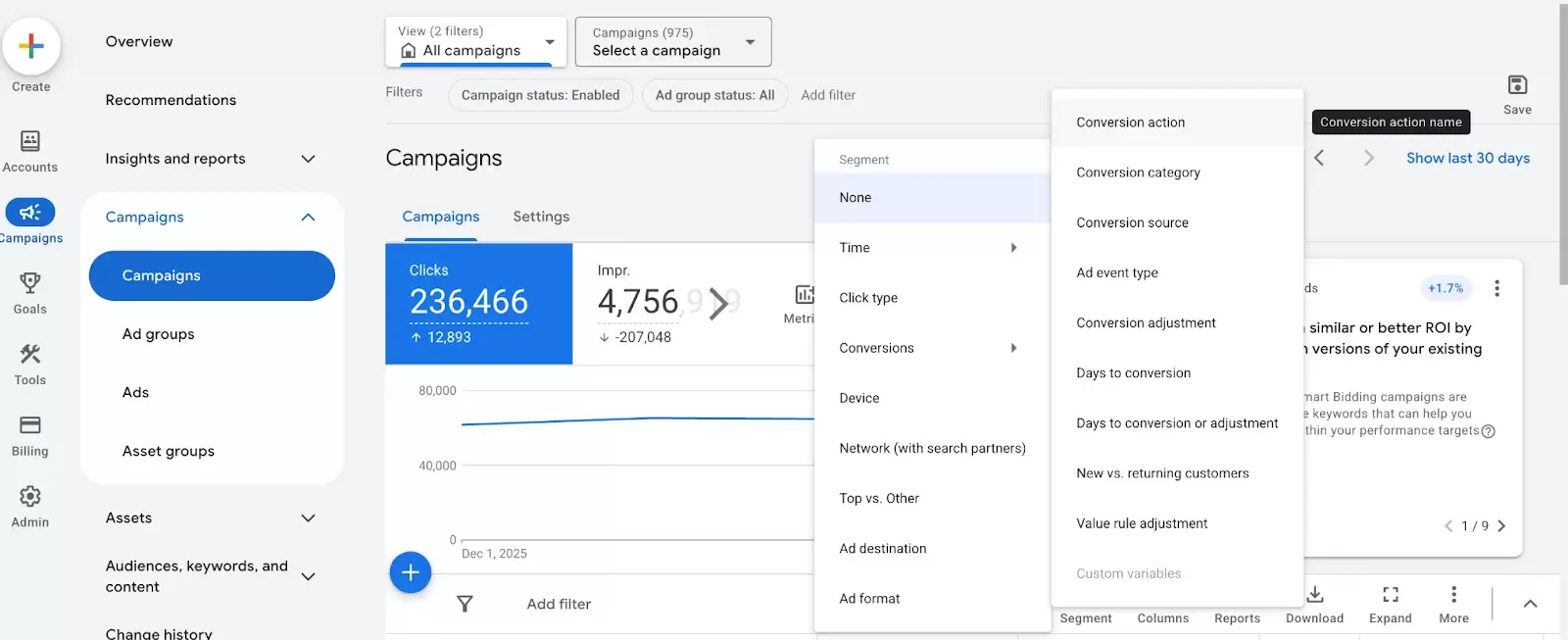
This ensures Google is properly counting your offline actions—and using them to optimize.
Closing the Loop: The Holy Grail of Marketing
If you want to run effective digital marketing campaigns in this day and age, you have to find a way to close the loop. The advertising systems need the data as signals to find more customers. The executives need the data to justify the investment. It’s not a pipe-dream. It’s an achievable reality that we work towards with our clients every day at Workshop Digital.
If you would like to discuss with our team ways to leverage offline conversion data to superpower your digital marketing efforts, reach out today!